
Before a Stacher download from YouTube
Confirm that you have the right to save the video. A video being publicly viewable does not automatically mean it may be copied, redistributed or reused. YouTube Premium offline viewing is a YouTube application feature and is not the same as exporting a reusable media file through Stacher.
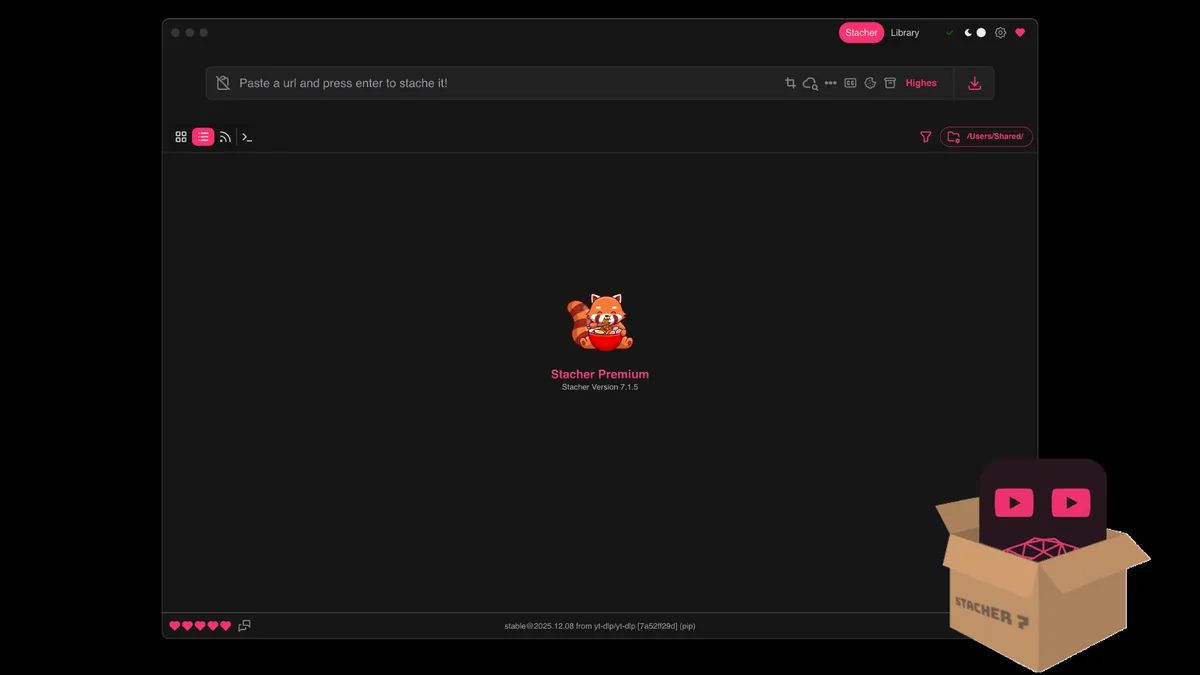
Open Stacher and let its yt-dlp update check complete. YouTube player changes can break older extractors even when Stacher itself still launches normally. Also confirm that FFmpeg is available, because the best YouTube video and audio streams are commonly delivered separately and need to be merged.
- Test with one short public video you are authorized to save.
- Use the complete watch URL rather than a shortened or copied page fragment.
- Choose an output folder with room for video, audio and the final merged file.
- Disable unnecessary post-download scripts during the first test.
This guide does not provide instructions for bypassing private, members-only, paid, age-restricted or other access-controlled content.
How to download an authorized YouTube video with Stacher
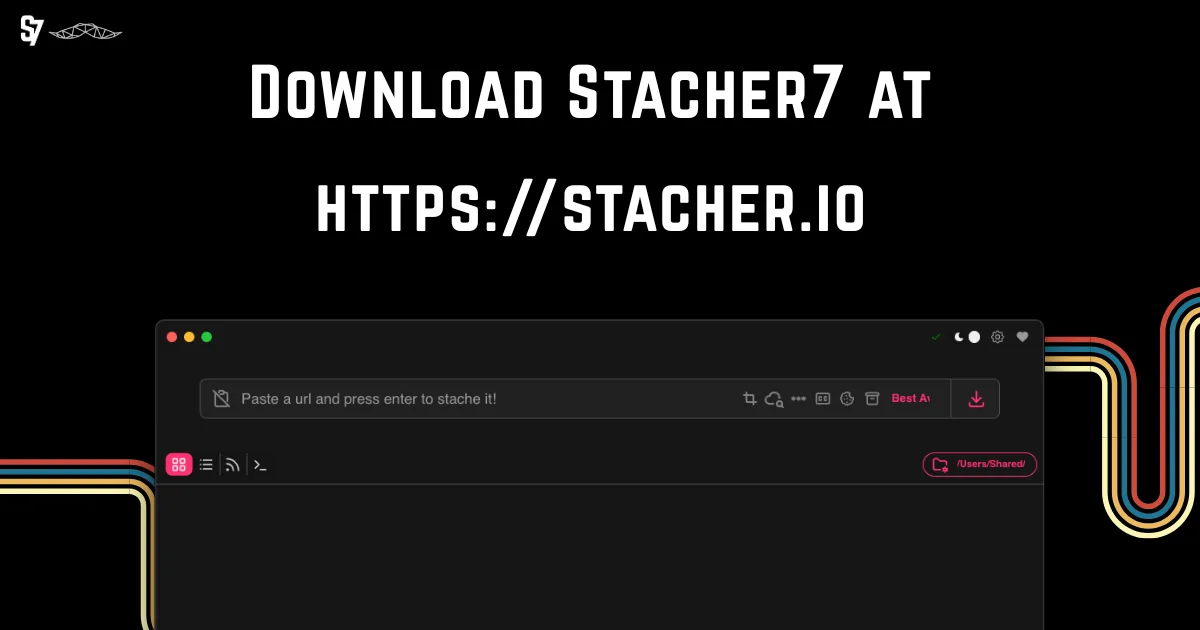
Copy the URL from the browser address bar while viewing the individual video. Paste it into Stacher's main input. Stacher should identify the link and add it to the current workflow. If it stays blank or reports unsupported data, update yt-dlp before changing format expressions.
Select a preset. Highest Quality usually requests the best available video stream plus the best available audio stream, which can produce two temporary downloads followed by a merge. A compatibility preset may cap the codec or container so the result plays in more editors and devices.
- Paste the full video URL into Stacher.
- Choose a combined video-and-audio preset or a specific compatibility preset.
- Enable subtitles only if the video supplies the language or subtitle type you need.
- Confirm the output folder and file template.
- Start the job and wait for both download and post-processing to finish.
- Open the finished file and verify duration, resolution, audio and subtitles.
Do not assume a 4K page will produce a single 4K MP4 file. Available resolution, codec, container and audio combinations come from YouTube's current streams.
Choose HD, 4K, H.264 and frame-rate settings
Resolution and codec are separate decisions. A high-resolution YouTube stream may use VP9 or AV1 rather than H.264. If an older editor needs H.264, choose a compatible format even if that means accepting a lower maximum resolution than the source's best AV1 or VP9 stream.
Frame rate is also source-dependent. Selecting 30 fps does not improve a 24 fps source, and it may exclude an otherwise higher-quality 60 fps stream. Avoid converting frame rate unless you have a specific production requirement; it increases processing time and can introduce duplicate or dropped frames.
| Goal | Starting choice | Trade-off |
|---|---|---|
| Best available quality | Highest video + best audio | May require FFmpeg and a newer codec |
| Broad playback support | H.264 video with AAC audio in MP4 | May not reach the source's maximum resolution |
| Smaller file | Lower resolution or efficient codec | Less detail or reduced compatibility |
| Audio only | M4A/Opus or MP3 extraction | No video; MP3 usually requires conversion |
The extension alone does not guarantee compatibility. Inspect the video and audio codecs when a downloaded MP4 still fails in an editor.
Fix YouTube downloads that wait or fail
Read the Stacher job log and identify the stage that failed. Extraction errors occur before media transfer and usually point to an outdated yt-dlp component, a changed player, an invalid URL or access requirements. Download errors occur during transfer and may involve the network, throttling or unavailable fragments. Post-processing errors happen after data arrives and commonly involve FFmpeg, disk space or a locked output file.
Test the same setup with one ordinary public video. If that works, the application and network are basically functional, and the original URL likely has different access, format or availability conditions. Repeatedly adding cookies or proxy settings without reading the error can make diagnosis harder.
Keep the successful test preset unchanged while investigating the original URL. That working comparison tells you whether a later change affects every YouTube job or only the restricted format, subtitle track or page you were trying to process.
If a Stacher YouTube download will not start, test the same URL with a current yt-dlp component and a simple preset. If transfer finishes but the file is incomplete, check fragments, disk space and FFmpeg finalization before changing formats.
- Update the managed yt-dlp component.
- Confirm the video still plays in your browser and is available in your region.
- Try a simpler combined format to separate extraction from merging problems.
- Check free disk space and output-folder permissions.
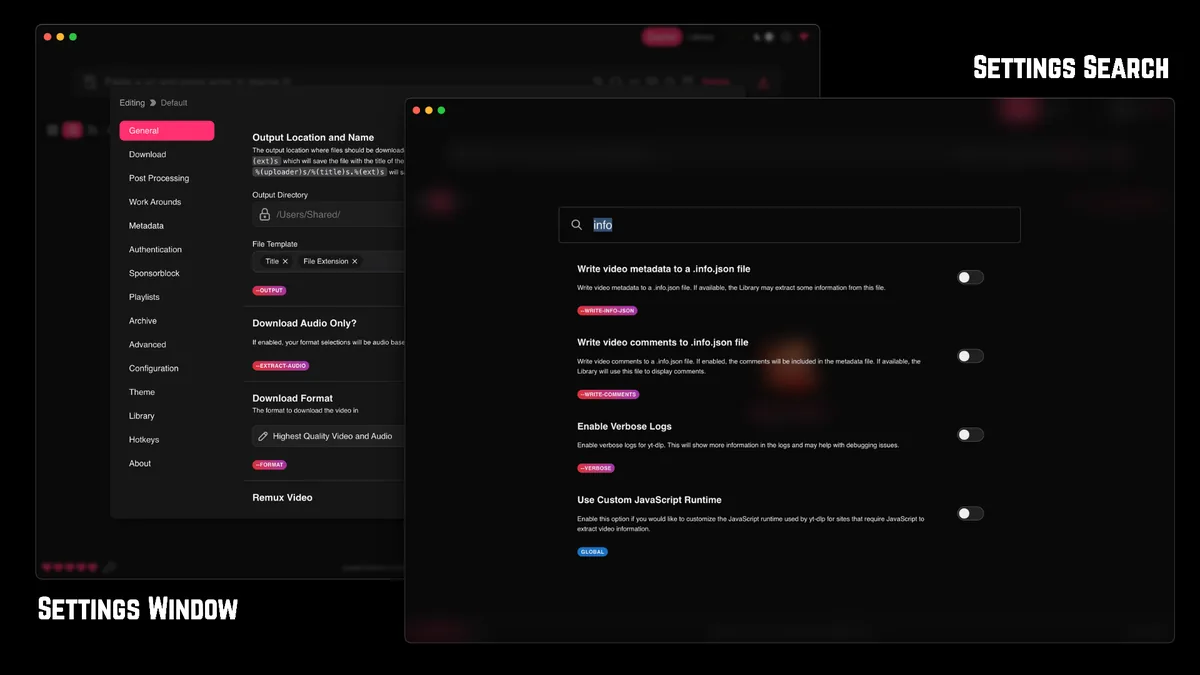
- Enable verbose logging only long enough to capture the relevant failure details.
If the source explicitly blocks downloading or you do not have permission, use YouTube's official viewing or offline features instead.
Verify a Stacher download from YouTube
A completed status is only the first check. Open the final file, compare its duration with the YouTube page and seek near the beginning, middle and end. Confirm the selected audio language, visible resolution and subtitle behavior. If separate video and audio files remain beside the final file, review the log to confirm whether FFmpeg merged them or stopped during post-processing.
Inspect the result in the player or editor where you plan to use it. Modern players may accept VP9 or AV1 while older editing software expects H.264 and AAC. When compatibility fails, keep the original completed file, select a compatible source stream or remux where possible, and avoid repeated lossy conversion merely to change an extension.
For a second Stacher download from YouTube, reuse the verified preset before enabling thumbnails, metadata, subtitles or custom naming. Add one option, complete a short authorized test and compare the result. This sequence shows whether a new failure comes from the source media or from the additional post-processing request.
If the page changes after you saved the URL, run a fresh browser check. Deleted, private, members-only, regional or age-controlled pages require different legitimate access conditions and may not be downloadable at all. Do not treat cookies or a proxy as universal troubleshooting steps.
- Match the final duration to the currently available source.
- Inspect both video and audio codecs, not only the filename extension.
- Check captions at several points when subtitle timing matters.
- Keep the log until transfer and FFmpeg finalization are confirmed.
A Stacher download from YouTube is verified only when the final authorized file has the expected streams, duration and playback compatibility.
Stacher YouTube download FAQ
Can Stacher download one YouTube video?
Yes. Paste one supported video URL, choose the output preset and start one job. Testing a single authorized video is the recommended first workflow.
Why does Stacher download video and audio separately?
YouTube often serves its best video and audio as separate streams. Stacher uses yt-dlp to fetch them and FFmpeg to merge the final file.
Can Stacher download YouTube Premium offline files?
YouTube Premium offline viewing is designed for playback within YouTube's applications. This guide does not explain exporting, decrypting or bypassing protected offline files.
Why are automatically generated subtitles missing?
Automatic captions and uploaded subtitles are different tracks. Availability varies by video and language. Review subtitle settings and the extractor output to see which tracks the source exposes.
Why is the highest-quality download not H.264?
The highest stream may use VP9 or AV1. Choose an H.264-compatible format when playback support matters more than the maximum available resolution.
How do I fix a Stacher YouTube download that will not start?
Start with one authorized public video, update yt-dlp, use the full URL, confirm the output folder is writable and read the job log. Then test a simpler preset to separate extraction, transfer and FFmpeg errors.
Can Stacher download a private YouTube video with a URL?
Only when you have legitimate access and saving is allowed. This guide does not provide steps to bypass private, paid, members-only or other access controls; use the platform's official options when a download is restricted.